Reader mode
Reader mode lets you view pages so that only text and accompanying images or videos display. Other page elements, such as banners, site control elements, and social media buttons, are hidden.
Enable
In the SmartBox, click → Enable Reader mode.
Press the following keys: Alt + B (in Windows and Linux) or ⌘ + Ctrl + R (in macOS).
When switching to another page or tab, you need to re-enable Reader mode.
Configure
To reduce eye strain, you can adjust the background color, font, and text size in the settings panel under the SmartBox. The layout you select will be used by default for all documents opened in Reader mode.
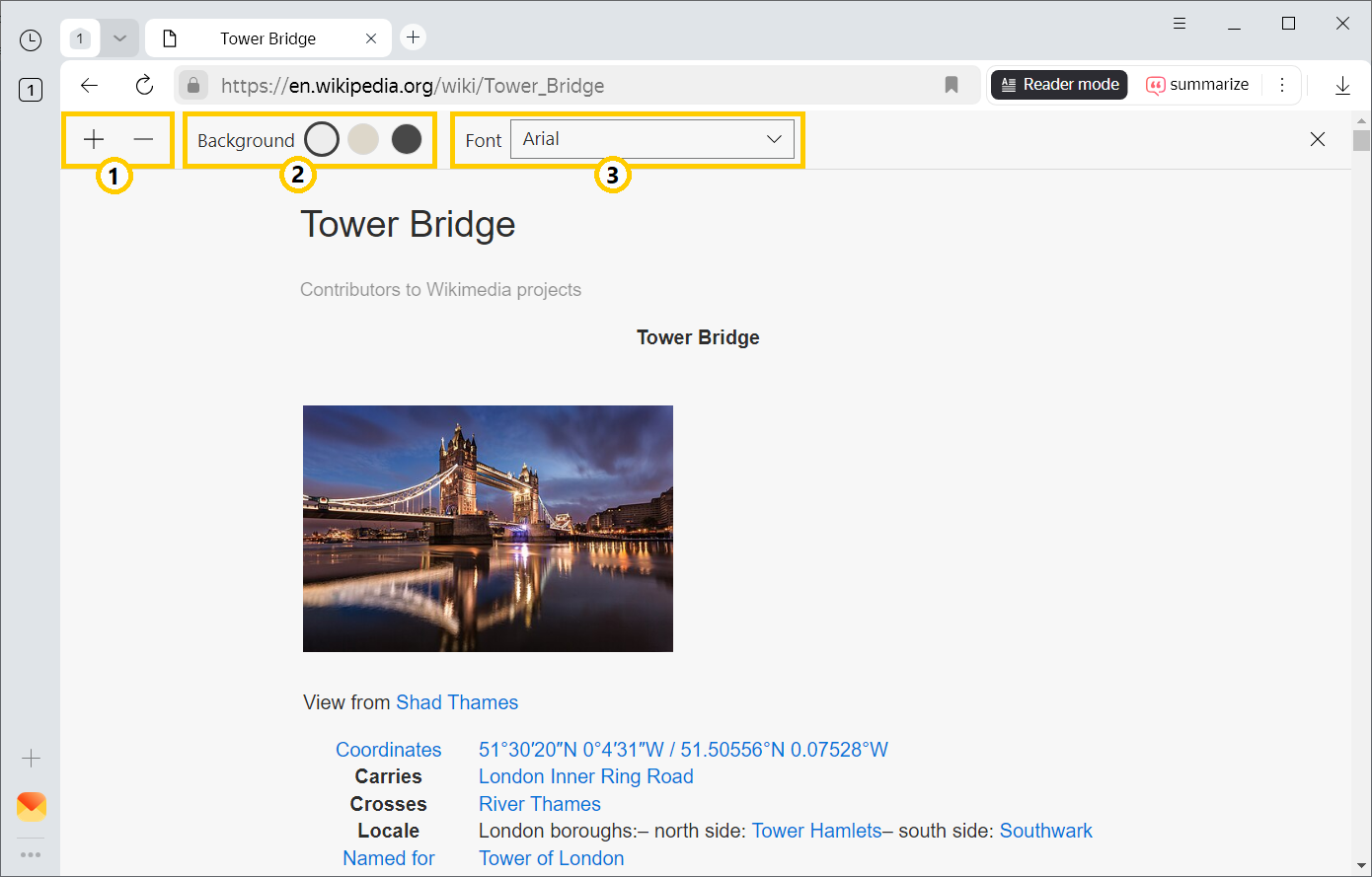
— change font size
— select background color
— change font style
As you scroll the page, the settings panel disappears. To see it again, go back to the top of the page.
To free up some space for the text, you can also hide the upper panel of Yandex Browser. To do this, switch to the full-screen mode by pressing F11. To exit the full-screen mode, press F11 again.
Exit Reader mode
Click the  button to the right of the SmartBox, or click → Turn off Reader mode in the SmartBox.
Tap .
Press the following keys: Alt + B (in Windows and Linux) or ⌘ + Ctrl + R (in macOS).
Keyboard shortcuts to navigate the page
Keyboard shortcuts
|
Scroll the page up one screen |
Shift + Space PageUp |
|
Scroll the page down one screen |
Space PageDown |
|
Go back to the top of the page |
Home |
|
Go to the end of the page |
End |
Use keyboard shortcuts for other actions, too.